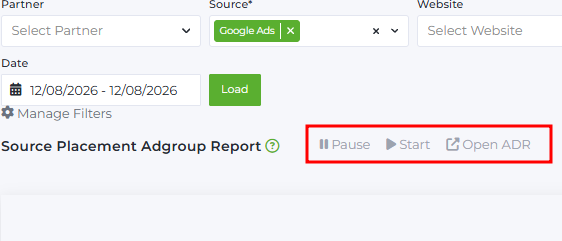
Source Placement Adgroup Report is a detailed report on placements for a specific ad group or multiple ad groups.
It is located in Reports → Sourse Placement Adgroup Report
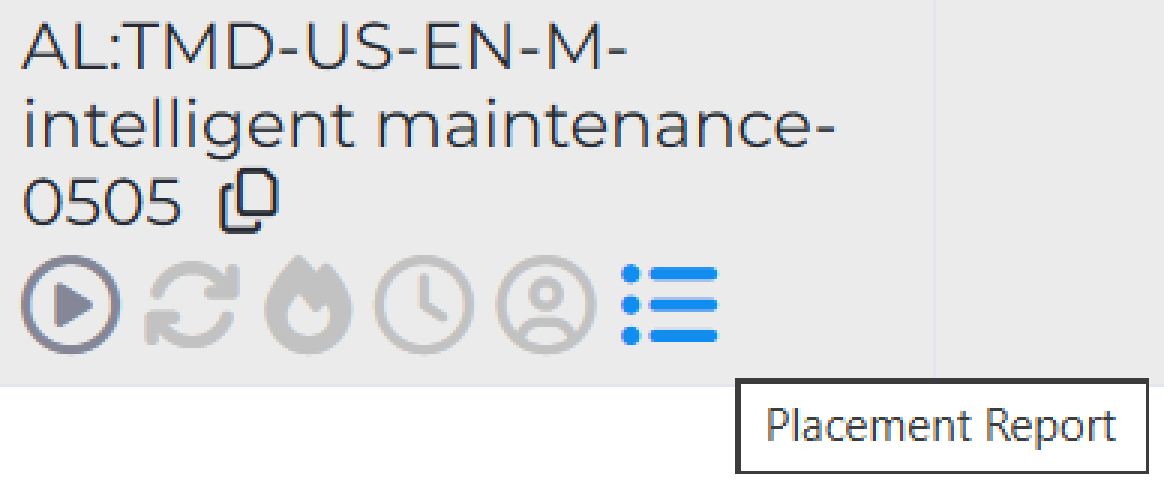
You can also go to the report by clicking on the stripe icon in System Name column in AdGroup Report.
Important:
- The report contains statistics for the last 14 days.
- By default, data are shown at the highest level available for the source.
- You can view data for a single ad group or for all ad groups at once. To see statistics for all ad groups simultaneously, you need to select the Source filter.
Filters
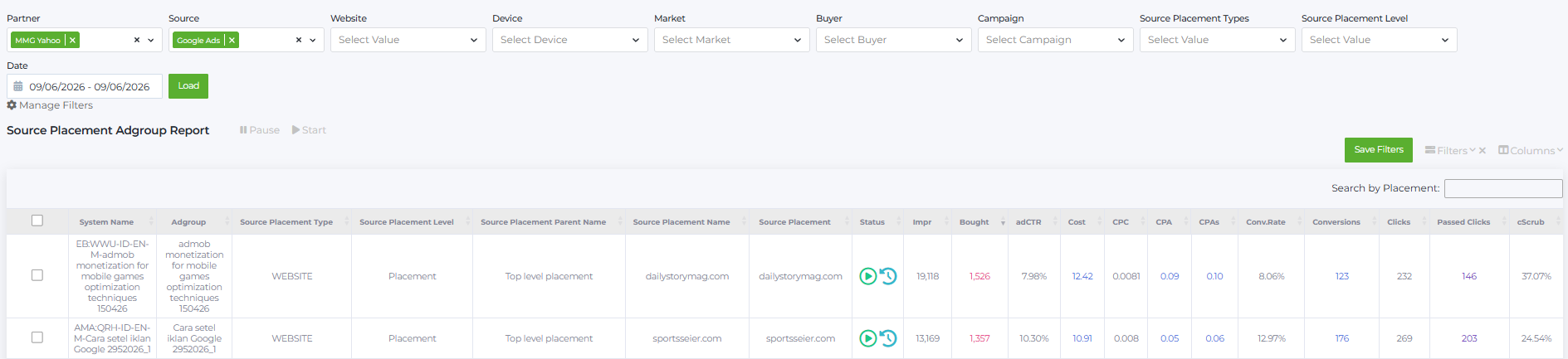
Above the table, filters are provided to customize the report by the following parameters:
- Partner: list of partners available to the buyer.
- Source: list of traffic sources.
- Website: list of target websites receiving traffic.
- Device: list of devices targeted by traffic.
- Market: list of countries where ads are placed.
- Buyer: list of buyers registered in the system.
- Campaign: select campaigns by the name assigned during upload.
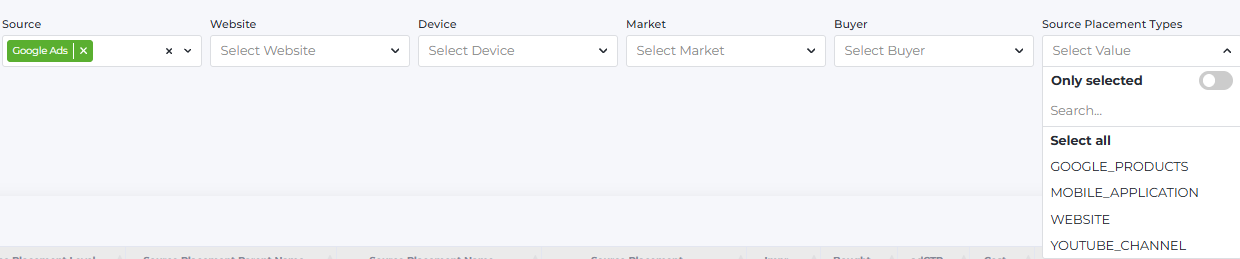
- Source Placement Types: types of advertising placements where ads can appear. To filter by this, first select the Source filter.
- For Google Ads — all available types are shown (e.g., WEBSITE, MOBILE_APPLICATION).
- For Taboola — shows Site instead, as Placement Type is not defined for this source.
- For other sources — shows Common, as Placement Type is not defined.
- Source Placement Level: placement level shown in the report. When opening the report, all available levels for the selected source are displayed. A source may have one or multiple levels. For example, some sources have two levels: first — Publisher, second — Placement. This filter helps optimize campaigns at all available levels. By default, data are shown at the top level. To filter by level, first select and fill the Source filter.
- For Google Ads, filtering is only available at the placement level since it supports only one level.
- For Taboola, filtering is by Publisher level, also a single level.
- Other sources may have two levels (e.g., Zone and SubZone), so you can filter by either.

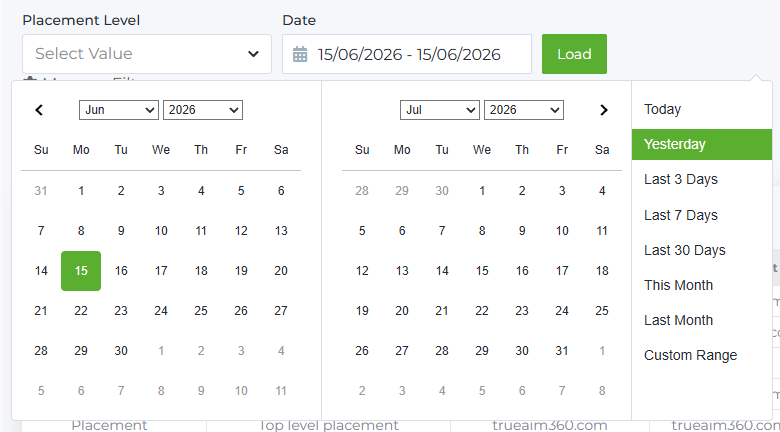
- Date: date range selector with a user-friendly clickable calendar.
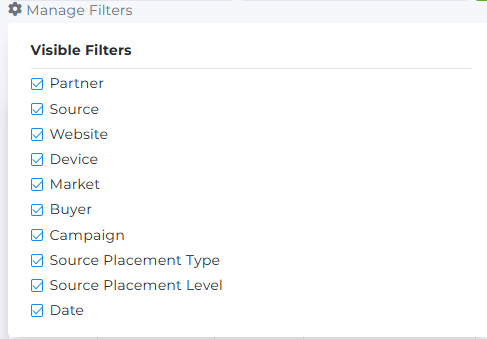
Unused filters can be hidden via the Manage Filters button.
You can also customize filters for data display by clicking the Filters button on the right above the report.
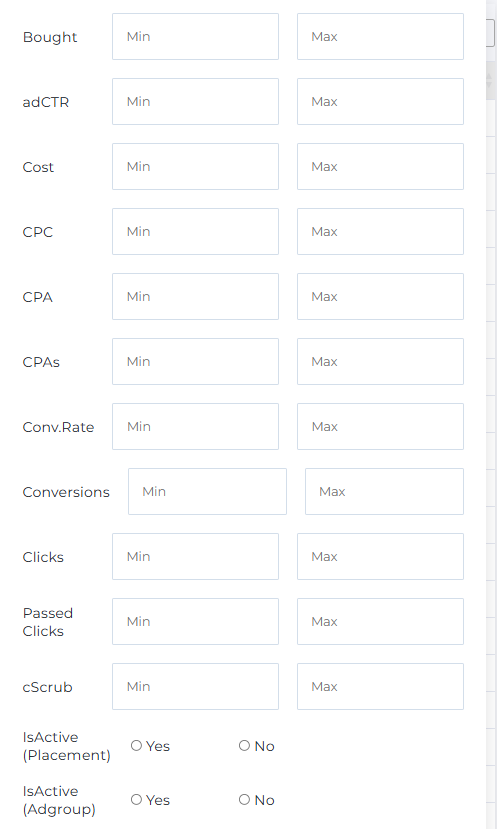
Checkboxes IsActive (Placement) and IsActive (Adgroup) allow sorting by active and paused placements and ad groups.
The report supports saving filter presets — useful when decision making relies on certain metric combinations. Set parameters and click Save Filters.
Filters apply when you click the Apply button.
Search by Placement lets you quickly filter data by columns like Source Placement Type, Source Placement Level, and Source Placement Parent Name. Typing 2–3 characters filters results automatically. For Source Placement Name and Source Placement, searching is also available, but inputting full names gives more accurate results.
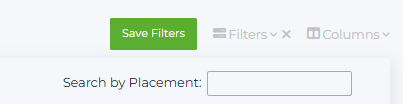
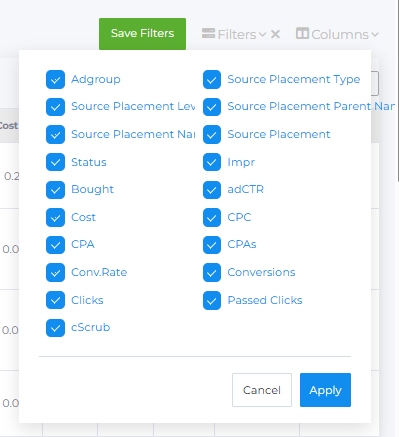
You can also select which columns are visible in the report by checking them and clicking Apply. Unchecked columns are hidden.
Report Content
The AdGroup Placement Report table includes these columns:

- System Name: campaign name in Babkee. If you click on the System Name of the selected adgroup, you will be redirected to the Adgroup Daily Report for this adgroup. There is a Copy icon next to the name, which allows you to copy the System Name to the clipboard.
- Adgroup: ad group name.
- Source Placement Type: type of advertising placement.
- Source Placement Level: level supported by the traffic source.
- Source Placement Parent Name: identifier of the parent placement one level above.
- For single-level sources (Google Ads, Taboola), only the top level (Top level placement) is shown.
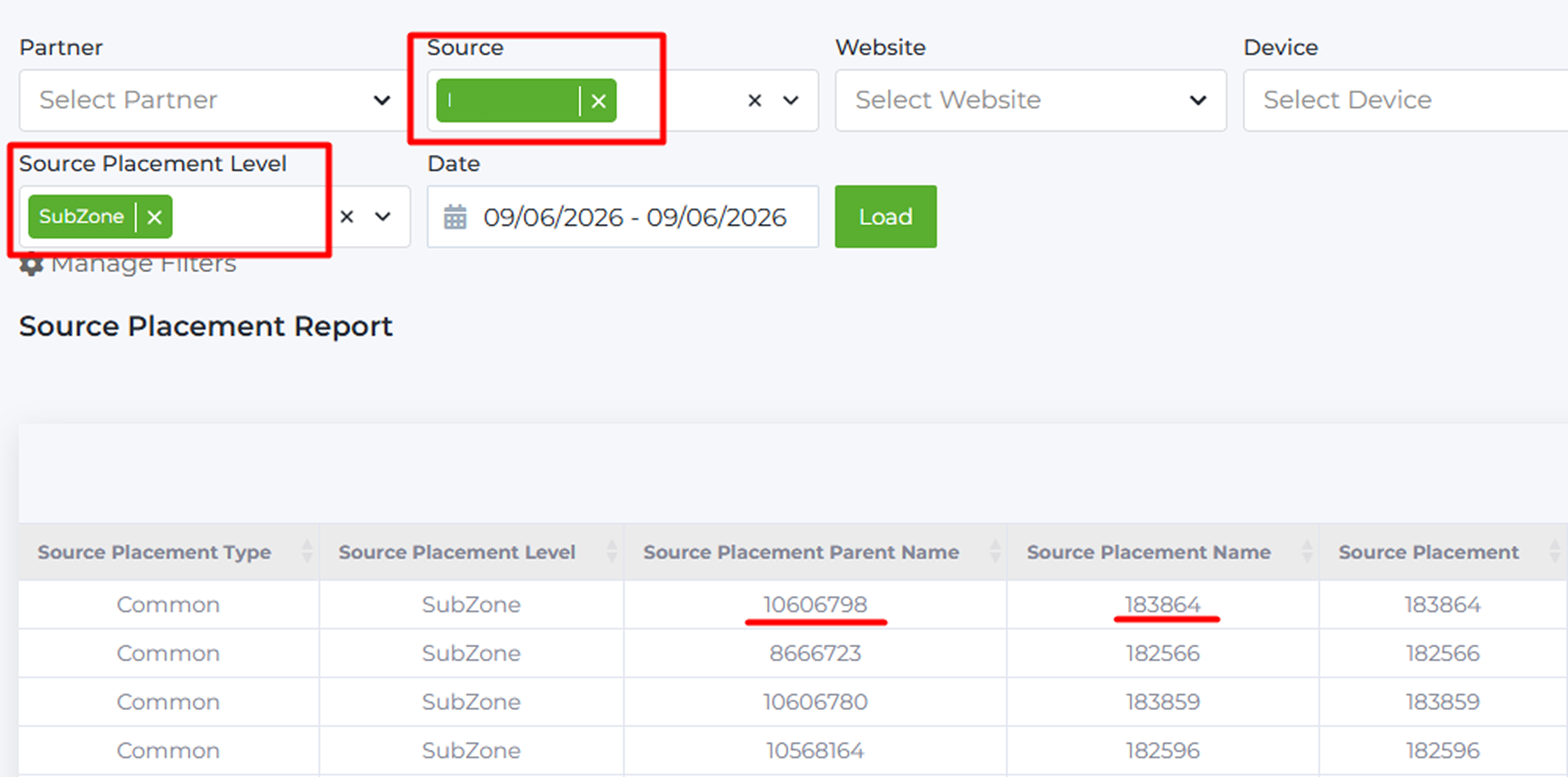
- For two-level sources, if SubZone is selected, this column shows the parent Zone ID, and Source Placement Name shows the SubZone ID.
- Source Placement Name: name of the site or app where ads appear.
- Google Ads: mobile app or YouTube channel name (e.g., sportsseier.com).
- Taboola: placement name (e.g., Glance - Trends (All OEMs)).
- Source Placement: placement identifier on the source (hidden by default). This is especially helpful with Google Ads and Taboola for creating Blacklist and Whitelist rules. For example, Source Placement Name may show full app names (e.g., “Mobile App: Truecaller: Phone Call Blocker (Google Play), by Truecaller”), but these cannot be used for white/black lists in Google Ads. Instead, the identifier in Source Placement (e.g., “2-com.truecaller”) is used.

f you pause placements directly via Babkee’s interface, the Source Placement identifier is not required. This column is only needed when you create auto rules inside the source account manually.
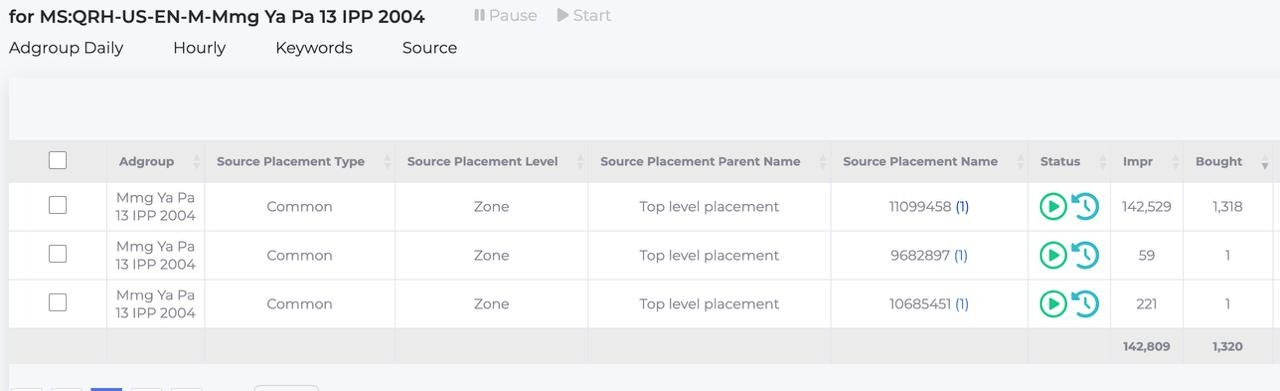
For sources with multi-level structures, Source Placement Name may display nested placements showing how many placements a publisher has. For example, zone ID 11099458 has one nested placement. Clicking it leads to the lower-level report — SubZone level — where you may see the “Other” SubZone. You can pause this “Other” SubZone without pausing the entire zone. On the partner side, in Edit Campaign, you can verify the SubZone is excluded.
Pausing “Other” and other SubZones happens only on the specific zone level.
To pause all “Other” SubZones:
- Select SubZone in the Placement Level filter.
- Enter “Other” in the Search by Placement field.
- Select all items via checkboxes and click Pause.
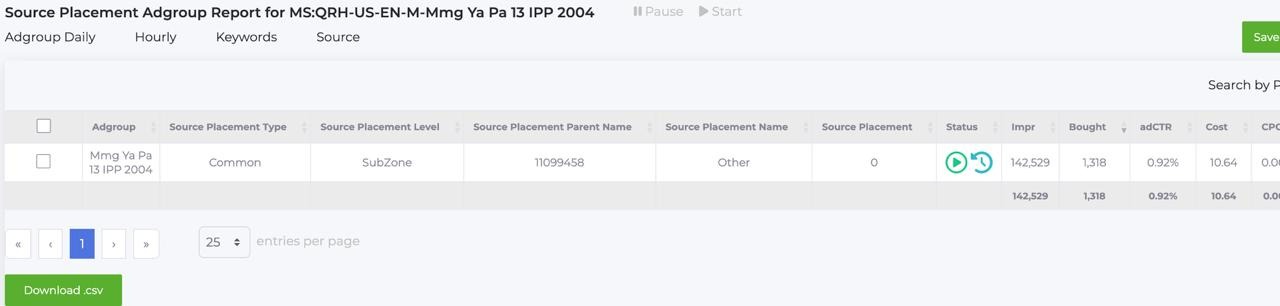
When dealing with the “Other” SubZone, the Source Placement column shows 0 — this is the identifier returned by the source partner.
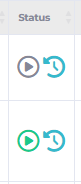
Status: ad group status:
- Green means the campaign is active.
- Gray means the campaign is paused.
You can pause or start campaigns directly inside the report. A blue arrow icon links to the Placement Targeting History page, showing who and why enabled or disabled the publisher/placement.
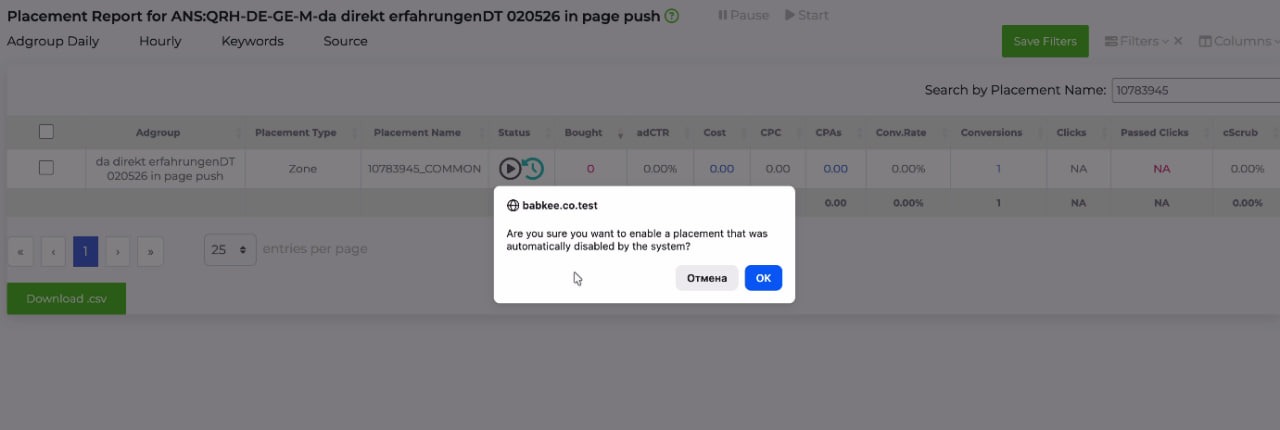
Note: If automation blocked a zone and a user wants to enable it again, a confirmation popup appears. After clicking “OK,” no further messages will show, and that placement will no longer be auto-blocked in this ad group.
- Impr (Impressions): number of ad impressions.
- Bought: number of clicks purchased per ad group placement in the period.
- adCTR: CTR at the placement level.
adCTR = Bought / Impressions*100%
- Cost: amount spent on ads at the placement during the period. Click to see spend distribution for last 7 days:

- CPC (Cost Per Click): cost per purchased click.
CPC = Cost / Bought
- CPA: average Cost Per Action based on Passed Clicks.
CPA = Cost / Passed Clicks
Due to conversion delay (up to 1 hour), CPAs may not be fully accurate. Sometimes conversions for a day arrive late. To avoid confusion, CPA based on Passed Clicks is shown — this is more precise.
- CPAs (Cost Per Action source): average CPA on the placement.
CPAs = Cost / Conversions
- Conv.Rate (Conversion Rate): average conversion rate.
Conv. Rate = Conversions /Bought *100%
- Conversions: number of conversions.
- Clicks: total raw clicks received.
- Passed Clicks: clicks verified as real by bot detection (excluding bots).
- cScrub: % of clicks blocked by bot detection.
cScrub =( Clicks - Passed Clicks)/ Clicks)*100%
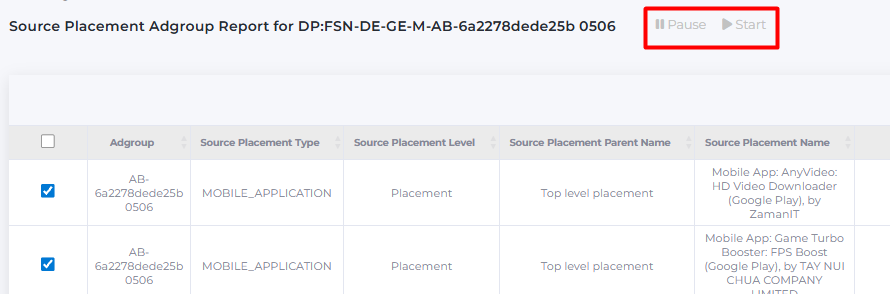
You can interact with placements directly in the report by pausing or starting them. Select the desired groups by checking the boxes and click the Pause or Start button above the table.
Report data can be downloaded as an .xlsx file via the Download .csv button below the report.
Also, the checkbox and the Open ADR button work as follows:
- If two identical ad groups are selected through the checkbox, one general report on them will open.
- If different ad groups are selected, a separate report window will open for each one.
- When you click on an ad group in the System Name column (without using the checkbox), a report is always opened for this particular ad group, even if it is the same ad group.