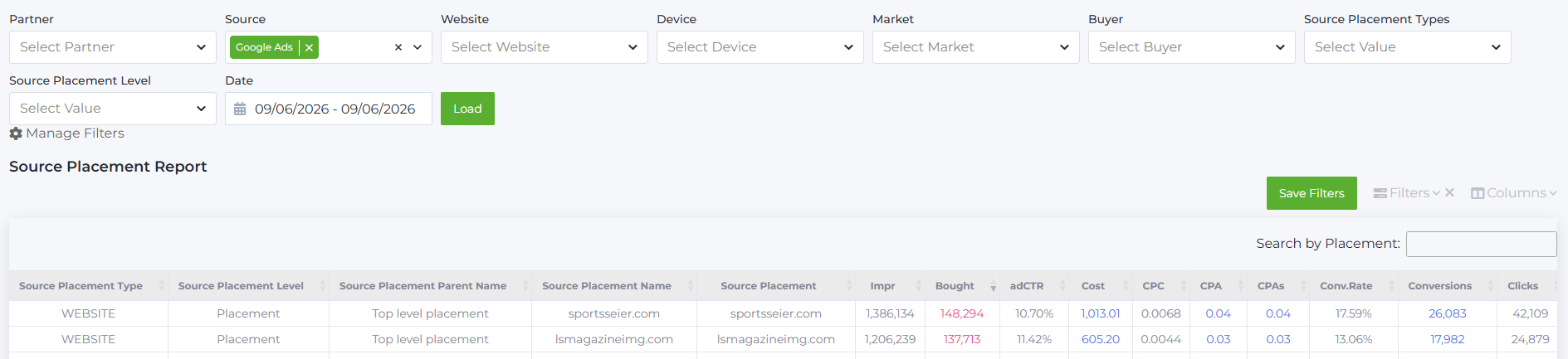
Source Placement Report shows detailed statistics on the distribution of purchased clicks and Cost across advertising placements within a traffic source for all campaigns managed by the buyer. It is located under Reports → Sourse Placement Report.
Important: The Placement Report displays data for Google Ads, Taboola, and other traffic sources. When you open the report, data for all sources available to the user appear immediately. For easier analysis, you can select the desired traffic source.
Statistics are available for the last 14 days.
By default, the report shows data at the highest available level. If a source has multiple levels, it displays the top-level data. For example, Google Ads only has the placement level — which is shown. For Propeller Ads, statistics are shown at the Zone level.
Filters
Above the table, filters allow detailed customization by the following parameters:
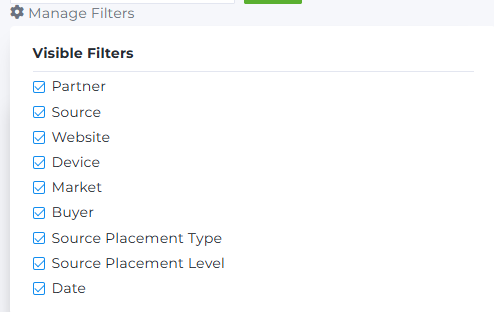
- Partner: list of partners available to the buyer.
- Source: list of traffic sources.
- Website: list of sites receiving traffic.
- Device: list of devices targeted.
- Market: list of countries where ads are served.
- Buyer: list of registered buyers.
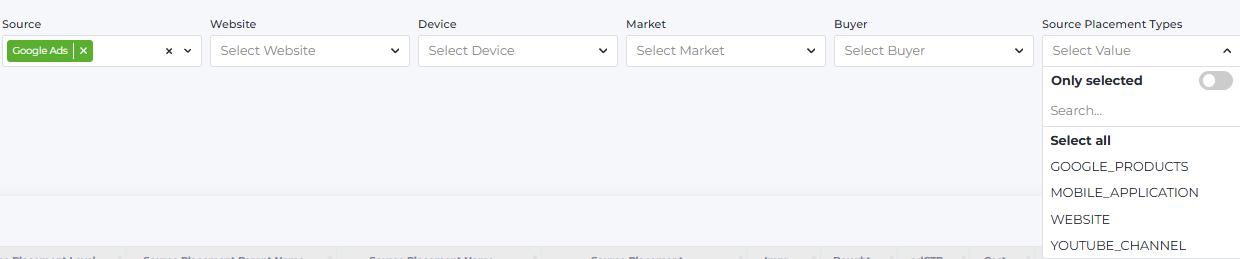
- Source Placement Types: types of advertising placements where ads can appear. To filter by this, first select the Source filter.
- For Google Ads — all available types are shown (e.g., WEBSITE, MOBILE_APPLICATION).
- For Taboola — Site is shown as Placement Type is not supported by the source.
- For others sources — always shows Common, as Placement Type is not defined.
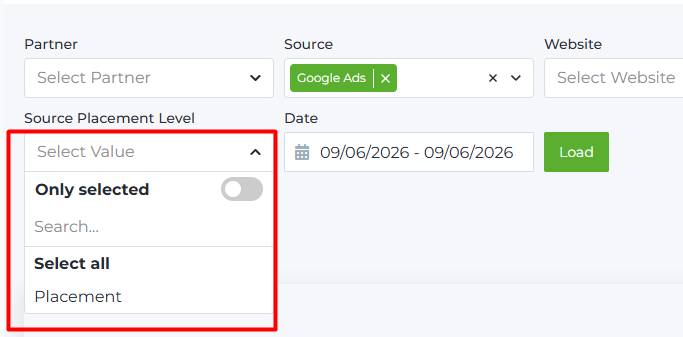
- Source Placement Level: placement level shown in the report. When opening the report, all levels available for the selected source are displayed. A source may have one or multiple levels. For example, some sources have two levels: first level — Publisher, lower level — Placement. This filter helps optimize campaigns at all available source levels. By default, data show the top level. To filter by level, first select the Source filter.
For Google Ads, filtering is only available by placement level (single level source).
For Taboola, filtering is by Publisher level (also single level).
Other sources may have two levels (e.g., Zone and SubZone), so you can filter by either.
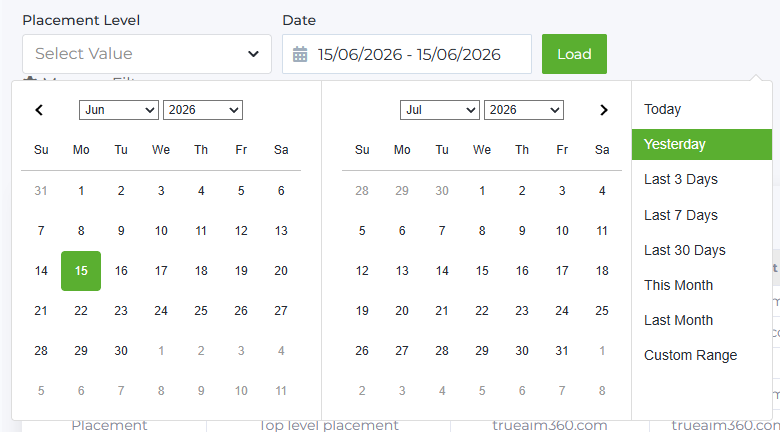
- Date: period selector with a clickable calendar.
You can hide unnecessary filters with the Manage Filters button.
Additional filters can be configured via the Filters button on the right above the report.
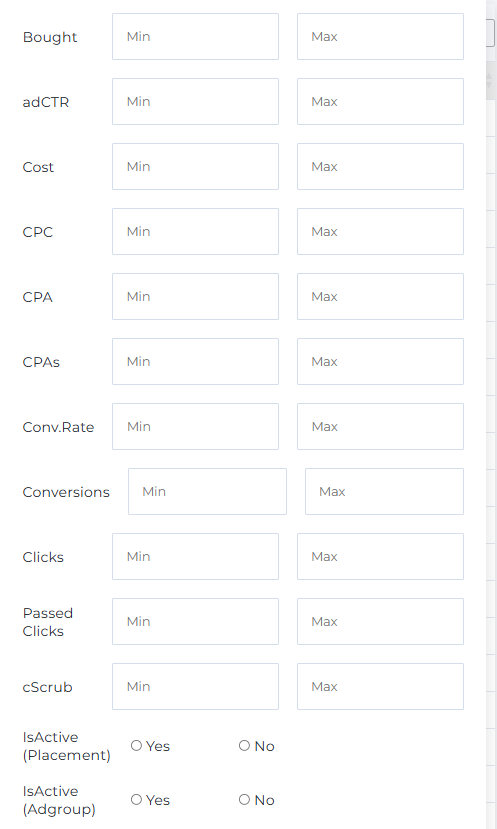
Checkboxes IsActive (Placement) and IsActive (Adgroup) allow filtering by active or paused placements and ad groups.
The report supports saving filter presets — useful when decisions are based on specific metric combinations. Set your filter values and click Save Filters.
Filters apply to the table when clicking Apply.
The Search by Placement field lets you quickly filter data by columns such as Source Placement Type, Source Placement Level, and Source Placement Parent Name. Typing just 2–3 letters filters matches automatically. For Source Placement Name and Source Placement, searching is also available, but entering full names gives more precise results.
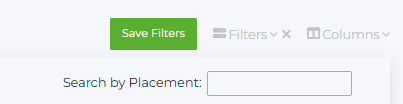
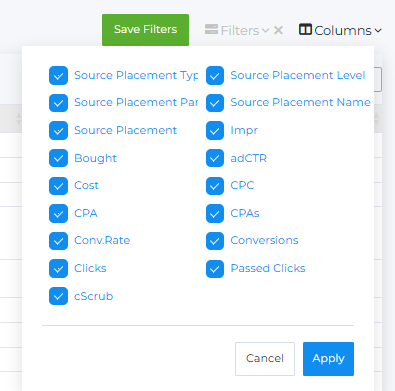
You can also select which columns to show or hide in the report. Check the columns you want to display and click Apply. Unchecked columns are hidden.
Report Content
The Placement Report table includes:

- Source Placement Type: types of advertising placements showing ads.
- Source Placement Level: placement level supported by the traffic source.
- Source Placement Parent Name: identifier of the parent placement, i.e., the level above the current placement in the hierarchy.
- For single-level sources (Google Ads, Taboola), only the top-level placement is shown.
- For two-level sources, if you select SubZone in the Placement Level filter, the column shows the Zone ID as the parent, and the SubZone ID in Source Placement Name.
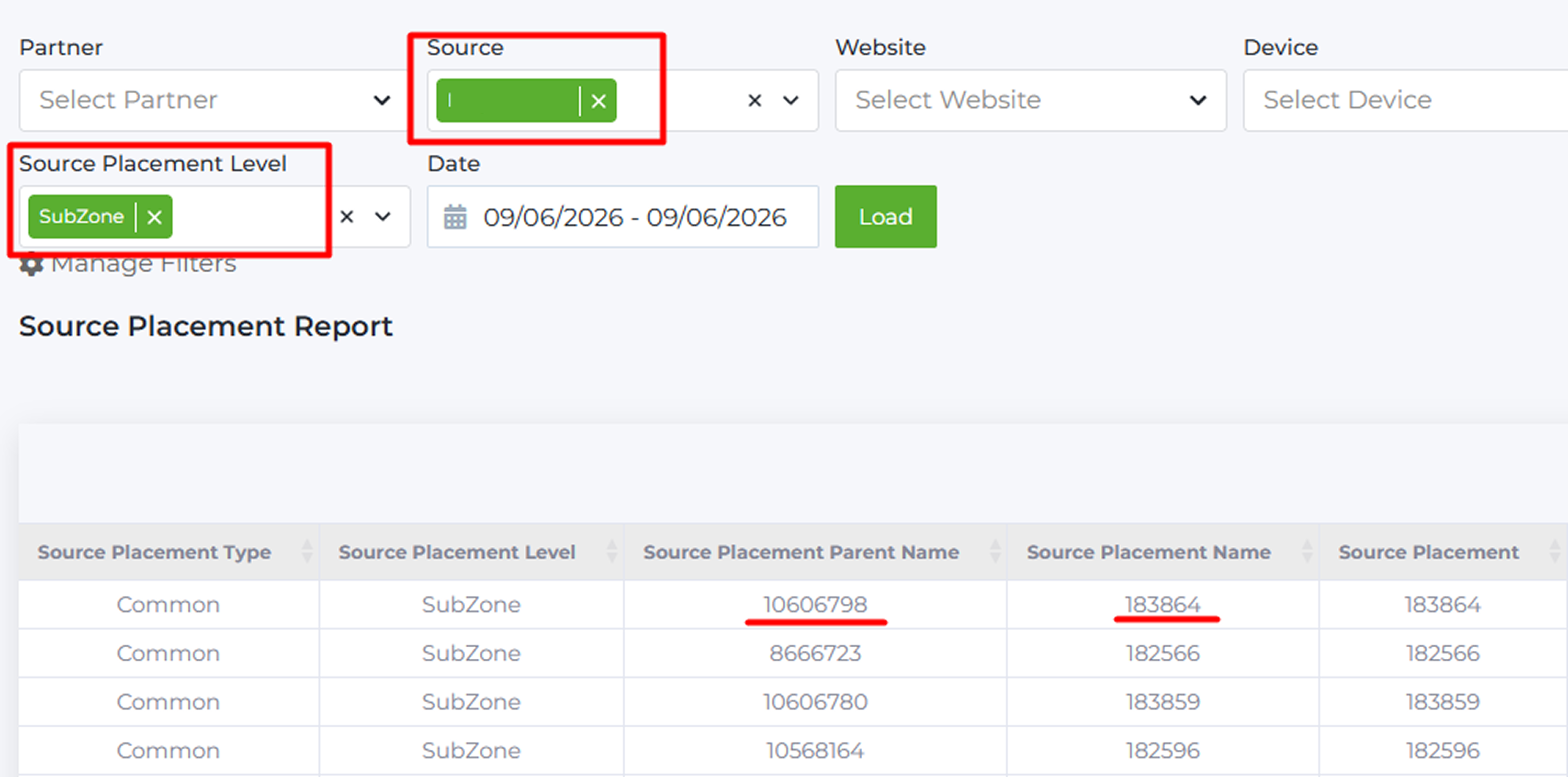
- Source Placement Name: the name of the site or app where the ad is shown.
- For Google Ads — the mobile app or YouTube channel name (e.g., sportsseier.com)
- For other sources — the SubZone ID
- For Taboola — the placement name (e.g., Glance - Trends (All OEMs))
- Source Placement: the placement identifier on the source (hidden by default). This is especially useful for Google Ads and Taboola for creating Black Lists and White Lists.
For example, the Source Placement Name may show the full app name from Google Ads like: “Mobile App: Truecaller: Phone Call Blocker (Google Play), by Truecaller”. But Google Ads does not accept this for white/black lists — the internal identifier from Source Placement is needed, e.g., “2-com.truecaller”.

- Impr (Impressions): number of ad impressions.
- Bought: number of clicks purchased per ad group placement in the period.
- adCTR: CTR at the placement level.
adCTR = Bought / Impressions*100%
- Cost: amount spent on ads at the placement during the period. Click to see spend distribution for last 7 days:

- CPC (Cost Per Click): cost per purchased click.
CPC = Cost / Bought
- CPA: average Cost Per Action based on Passed Clicks.
CPA = Cost / Passed Clicks
Due to conversion delay (up to 1 hour), CPAs may not be fully accurate. Sometimes conversions for a day arrive late. To avoid confusion, CPA based on Passed Clicks is shown — this is more precise.
- CPAs (Cost Per Action source): average CPA on the placement.
CPAs = Cost / Conversions
- Conv.Rate (Conversion Rate): average conversion rate.
Conv. Rate = Conversions /Bought *100%
- Conversions: number of conversions.
- Clicks: total raw clicks received.
- Passed Clicks: clicks verified as real by bot detection (excluding bots).
- cScrub: % of clicks blocked by bot detection.
cScrub =( Clicks - Passed Clicks)/ Clicks)*100%
Report data can be downloaded as an .xlsx file via the Download .csv button below the report.