
Placement Excluder tool removes bot-generated, low-quality, and high-cost placements across websites and mobile applications.
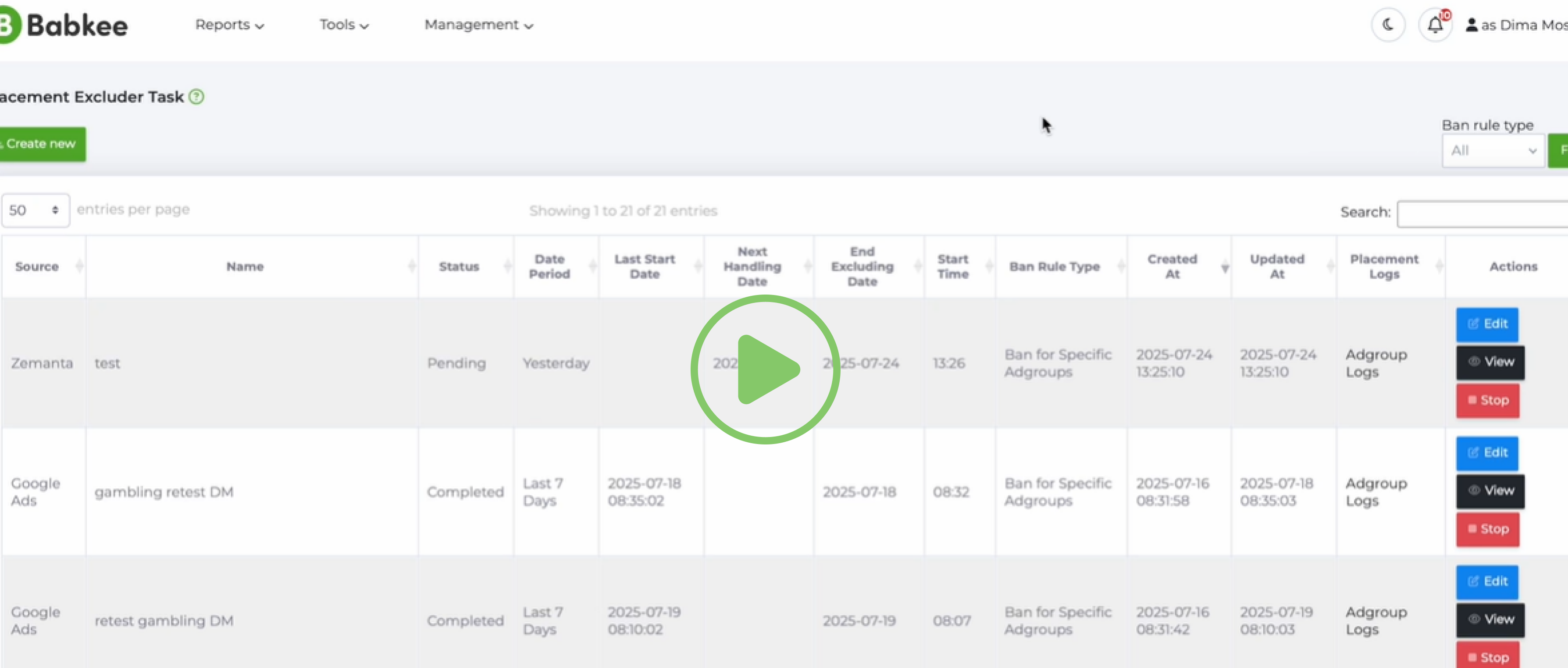
In this video, you can see step-by-step how to work with Placement Excluder.
A more detailed guide is available below.
Placement Excluder
consists of two parts:
- Placement Excluder Task.
- Placement Excluder Rule List.
You can access the tool via: Tools → Placement Excluder → Placement Excluder Task.
Placement Excluder Task page displays a history of exclusion tasks executed by the script. From this page, you can start, stop, edit, or view each task and its logs.
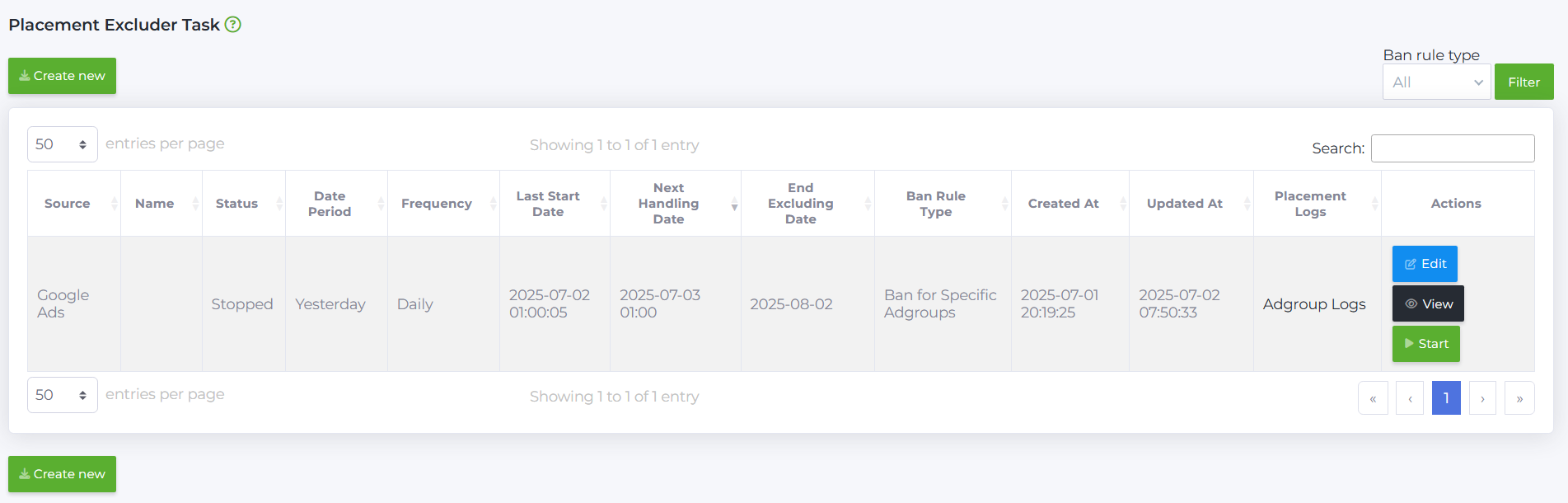
Columns:
Source – traffic source for the task (Google Ads or Zemanta).
Name – script name (empty if not specified).
Status – current state of the task:
- Pending – queued for execution.
- In Work – accepted and awaiting processing.
- In Progress – currently running.
- Completed – finished; will rerun if Next Handling Date is set.
- Stopped – disabled and will not run.
Date Period – the data interval used for exclusions (Today, Yesterday, Last 3 Days, Last 7 Days).
Frequency – script execution frequency: Daily, Hourly, Every 6 Hours, Every 12 Hours.
Last Start Date – timestamp of the most recent run.
Next Handling Date –scheduled date for the next run.
End Excluding Date – forced termination date; after this date the skript (or rule or task) will not execute.
Start Time – daily execution time in HH:MM (UTC+0)/
Ban Rule Type – scope of exclusion:
- Ban for Specific Adgroups.
- Ban for Partner And Site.
Created At – creation timestamp.
Updated At – last modification timestamp.
Placement Logs – link to detailed logs of excluded placements.

Click Adgroup Logs button to open Placement Excluder Task Adgroup Log page, which lists:
- Handling Date – task execution date and time.
- Ad Group – ad groups targeted by the rule.
- Placements Handled – number of placements excluded per ad group.

Restore button allows you to restore all the placements within the selected ad group.
Use filters to drill down into the data:
- Handling Date – allows you to select a specific date.
- Handling Hour – allows you to filter data by a specific hour (0–23). For example, you can see how many placements were blocked during the selected hour.
Click on Placements Handled link to open Placement Excluder Task Placement Log page, where you can view a detailed report of the placements excluded for each ad group.

On Placement Excluder Task Placement Log page, Is process successfully filter is available with three options:
- All — show all records.
- Yes — show only successfully processed placements.
- No — show only failed placements.
Error – displays the reason a placement could not be excluded/
Actions — a set of buttons for managing the script:
- Create New – open the configuration form for a new rule
- Edit – modify the parameters of an existing rule
- Stop / Start – disable or re-enable a rule
- View – display the task’s rule configuration and run log


To set up a new rule, click Create New button.

Placement Excluder Task New. This form defines the conditions under which the exclusion script runs.
You can customize the tool with the following filters:
Source – Select the traffic source: Google Ads or Zemanta.

Ban Rule Type – Choose one: Ban for Specific Adgroups or Ban for Partner And Site.

- Ban for Specific Adgroups – excludes placements in the specified ad groups.
When blocking by Ban for Specific Adgroups type, there are no restrictions on the number of System Names.

- Ban for Partner And Site – excludes placements across all of your ad groups for the selected partner and site.

Note: For users with the Team Manager role: Ban for Specific Adgroups applies to both the manager’s own ad groups and those of their team members. Ban for Partner And Site applies only to the manager’s own ad groups.
Rules – the section for configuring exclusion criteria. To run the script, you must define at least one rule: Domain Zone, Placement Words, or Metric Rules.

- Domain Zone (Google only):
1. Select one or more domain-zone lists from Placement Excluder Rule List (default lists: Bad Domain Zones, Good Domain Zones). You may combine multiple lists, provided their values do not conflict.
For example, use the default Bad Domain Zones and add a custom Bad Domain Zones New list; the rule applies to all domains in both lists.
2. Choose an action:
- Ban Except Selected – block all placements except those in the selected zones.
- Ban Selected – block only placements in the selected zones.

Note: if you select Good Domain Zones + Ban Except Selected, zones such as example.com and example.de remain, while example.xyz is blocked. If you choose Ban Selected, example.com and example.de are blocked, and example.xyz remains.
- Placement Words – Select one or more exclusion keyword lists. Any placement whose domain name contains at least one of the selected words will be excluded. Keyword lists can be created and edited on the Placement Excluder Rule List page.

Note: We provide the following default lists:
• Bad Domain Zones: .tk, .ru, viral, .za.
• Good Domain Zones: .com, .de, .nl, .it, .es, .uk, .eu, .gov, .org, .fr, .at, .au, .be, .br, .ca, .ch, .dk, .fi, .no, .nz, .us.
• Exclusion Words (category “Gambling”): game, fun, play, puzzle.
You may create your own lists with separate categories or combine all keywords into a single list.
- Metric Rules – Click "+" button to add metric rules to the script. Then you need to set up the rules to define necessary parameters when action will be carried out:
- Select one or more metrics: Cost, CPC, CPAs, Conv.Rate (%), Conversions, Bought, adCTR (%).
- Select the statement: > (greater than), < (less than), ≥ (greater than or equal to), ≤ (less than or equal to).
- Enter the value (integer or decimal number).
You can create multiple rules as separate sections. In this case, the sections operate according to the OR logic – this means that if the condition of at least one section is met, the rule is applied.
Note: When multiple metrics are selected, conditions are combined using AND logic: a rule will trigger only if all specified filters are met simultaneously.
Example: if you set CPA > 0,15 and Conv.Rate < 200%, an exclusion will occur only in those ad groups where both conditions are satisfied at the same time.
Schedule Settings — scheduling configuration:
Date Period – statistical interval used for exclusion (Today, Yesterday, Last 3 Days, Last 7 Days).

Life Time – maximum duration of the task before automatic termination (Once, 3 Days, 1 Week, 2 Weeks, 1 Month).

Frequency – automatic script execution frequency.

After selecting an interval, the script will run at your chosen cadence: Daily, Hour, Every 6 hours, Every 12 hours
When you select “Daily” script execution frequency, an additional field — Start Time — appears. Here you need to specify the daily start time in the HH:MM format (UTC+0). Only numeric input is allowed in this field.

Invalid values produce an error:
– ERROR The hour value must be between 0 and 23;
– ERROR The minute value must be between 0 and 59;

Name – script name (letters, numbers, and spaces).

If left blank, Name column in Placement Excluder Task remains empty.

After completing all required fields, click Save. The script will be added to Placement Excluder Task list and will run according to the configured settings.
Placement Excluder Rule List – This page lets you create and manage custom lists of domain zones and placement-word categories.

To add a new list:
1. Click Create New button.
2. Fill in the filters:
- Type – select the list type: DomainZone or PlacementWords.
- Name – enter a name for the new list.
- Values – enter each value (specific domain zones or exclusion keywords) on a separate line.
3. Click Save button to save the new list and make it immediately available in the script settings.
